
Sliders and fields
Dragging, fine control, typing a value, resetting with a double-click, going past the end, and range sliders.
Every slider in PBRgen works the same way, in the steps, in Tweak, in the Shader window and in the 3D view options. A few tricks make them much faster to use.
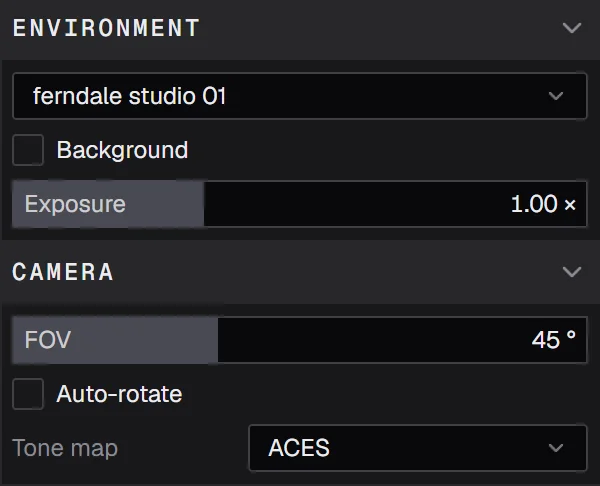
Dragging

- Drag anywhere on the slider, left or right. The value moves by as much as you move the mouse, from where it was: pressing never makes it jump to where you clicked.
- Hold Ctrl while dragging for fine control: the value moves ten times slower.
- While you drag, everything else on the slider steps back, so you can read the value.
Typing a value

Click the number to type a value. Enter or clicking elsewhere confirms it; Esc cancels. A value outside the slider's range is set to the nearest end.
Resetting

- Double-click anywhere on a slider to put it back to its default.
- Once a slider is changed, a ↺ appears next to its value. Click it to reset.
The default is the value the setting started with, which for a material is often the value PBRgen chose for it, not zero.
Going past the end
Some sliders can go further than their range shows, such as Normal intensity, a blur's Radius or the columns of a pattern. Drag one all the way to its end and let go: the range doubles, and you can drag further. Reset puts the range back too.
Range sliders

Some settings are a range, with a low and a high value on one slider, such as the Input and Output of a Value Map or Levels layer.
- Drag near one end to move that value.
- Drag the middle of the band to move both together, keeping the range the same width.
- When both values sit on one point, the direction you drag decides: left moves the low value, right the high one.
- Click a number to type it.
- Double-click resets both.
On some range sliders the two values can pass each other, which inverts the result: the Output of a Value Map, and the Input and Output of Levels. The band shows when it's inverted.
A range slider shown grayed out is set by something else, for example the Input of a Value Map while Auto input is on.
Switches and checkboxes
A switch in front of a section's name (Style, Colors, Guide, Color match, Inpaint seams) turns that whole section on or off. Its settings are kept while it's off, so switching it on again brings them back. A checkbox turns a single option on or off.
Prefer video? Our tutorials are on YouTube.