
Assistant
The AI assistant that sets up step 1 with you, and how to talk to it.
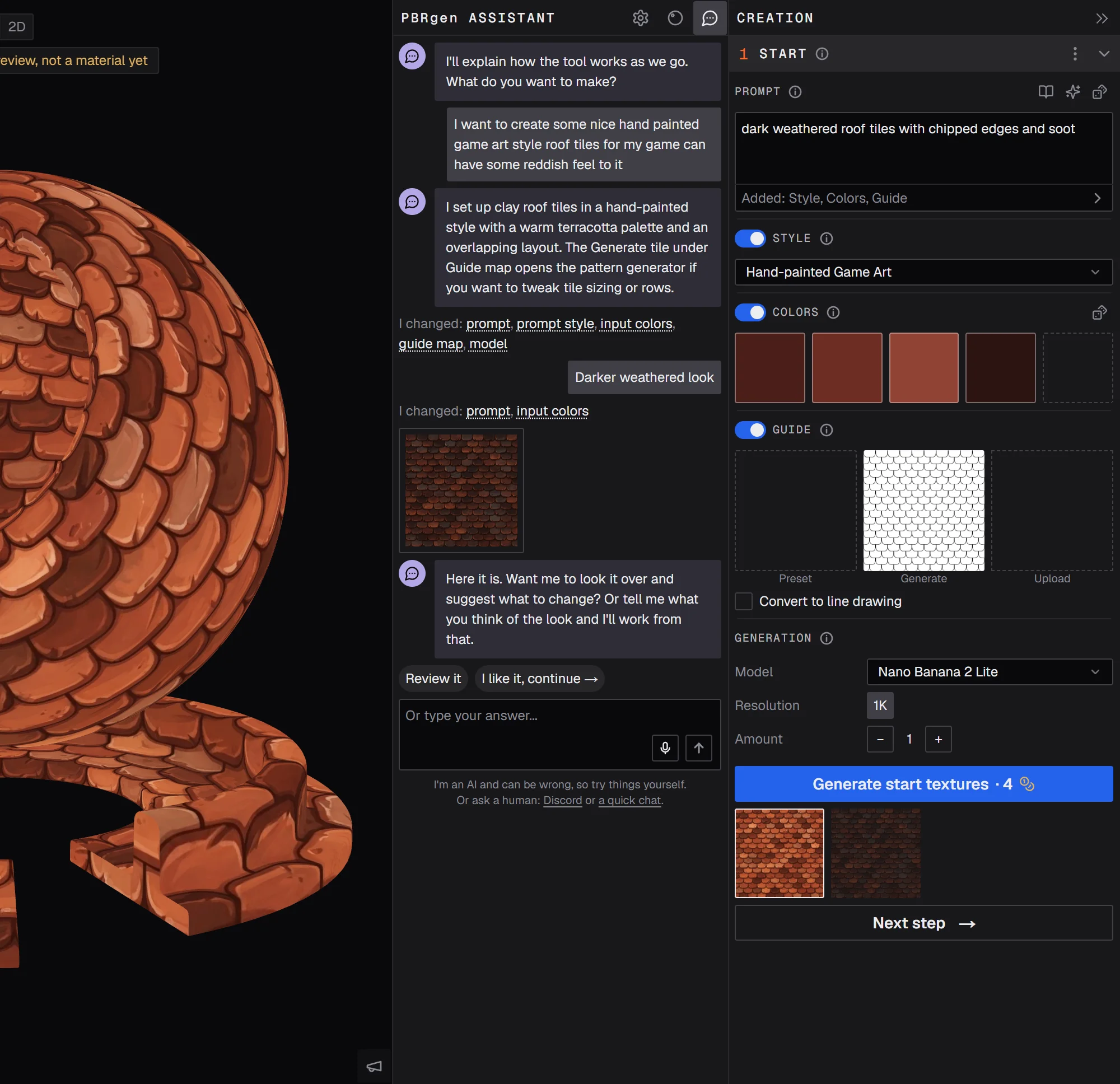
The assistant is an AI helper that sets up step 1 with you: tell it what you want to make, and it fills in the prompt and settings, explains what it chose, and can generate and review the results with you. For now it only knows step 1; help with the later steps is on its way.
Opening it
- New material first shows a small card that asks what you want to make. Pick an example or type a few words, and the assistant fills in step 1 for you. A note under the Assistant button then tells you it's there if you need more help.
- The Assistant button, in the row at the top right of the 3D view, opens the conversation at any time. Click it again to close it.
Talking to it
Type what you want, or pick one of the suggested answers it offers. The microphone lets you speak instead of typing. The first time, it explains that dictation sends what you say to your browser's speech service to turn it into text.
When it changes something in the form, its reply ends with a line listing what it changed. Hover a setting's name in that line to see what the setting does, and where it is in the form.
Along the way it offers next steps:
- Let's see what it looks like: generates start textures with the settings so far.
- Review it: looks at the results and suggests what to change.
- I like it, continue →: moves on with the texture you picked.
Good to know
- It's an AI and can be wrong. Everything it does is in the form, so you can always check it and change it yourself.
- Each material has a limit on how much back and forth it can do: 6 replies as a guest, 30 when signed in. After that, you can still change the fields and generate yourself.
- Generating through the assistant costs the same credits as clicking Generate yourself.
- Prefer to fill in the form yourself? Click Skip on the card, and Don't show this again to stop it showing up for new materials.
Prefer video? Our tutorials are on YouTube.