
Shader
The OpenPBR shader behind every material: its settings, and how to drive any of them with a map.
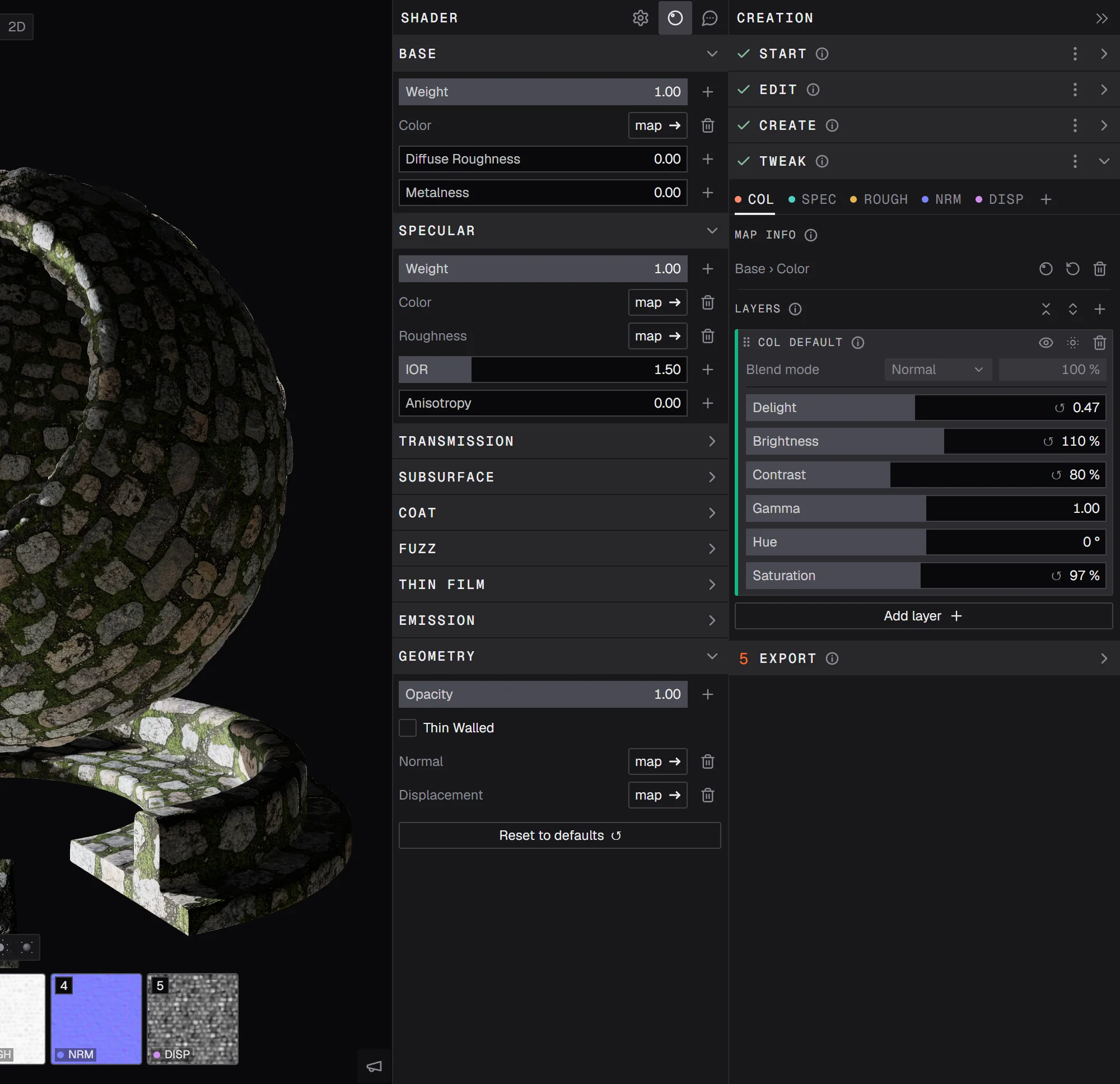
The Shader window shows every setting of the material's shader, and which of them are driven by a map. Open it with the Shader button in the row at the top right of the 3D view, or from Map info in Tweak. Click the button again to close it.
OpenPBR
PBRgen materials use OpenPBR, an open standard for describing materials. It's built to look the same in every program that supports it, and it's what the MaterialX file in your export is written in. The window follows the standard's own layout, so its names and groups match what you'll find in other 3D software.
The groups
The settings are grouped by what they do. Click a group to open or fold it.
- Base: the surface itself: its color, how much of the light it scatters, and whether it's metal.
- Specular: the shine on top: how strong, what color, how rough, and its IOR (how strongly it bends light).
- Transmission: light passing through, as in glass or water.
- Subsurface: light scattering inside the surface, as in skin, wax or marble.
- Coat: a clear layer on top, like varnish or lacquer.
- Fuzz: a soft sheen from fine fibers, as on velvet or dust.
- Thin Film: the rainbow shimmer of a soap bubble or an oil film.
- Emission: light the surface gives off itself.
- Geometry: opacity, thin walls, and the normal and displacement maps.
A value or a map
Each setting is either one value for the whole material, or driven by a map that varies across the surface.
A value: set it with its slider, color swatch or checkbox. A changed color shows a ↺ to put it back.


The + next to a setting: drive it with a map instead. The map is added to the material, starting from the current value, and gets its own tab in Tweak.
A setting driven by a map shows map →, which opens that map's tab in Tweak, and a bin that takes the map out again.

How many extra maps fit depends on your graphics card. When you reach the limit, the window says so.
Reset to defaults at the bottom puts every value back to how the material started. The maps stay.
Values you set here are part of the material: they show on the shader ball and go into your export.
Prefer video? Our tutorials are on YouTube.