
Library
Your materials, folders, the full library, examples, published materials, and copying a material from any step.
The library, the column on the left, holds every material you make. They're saved automatically as you work, so there's no save button.
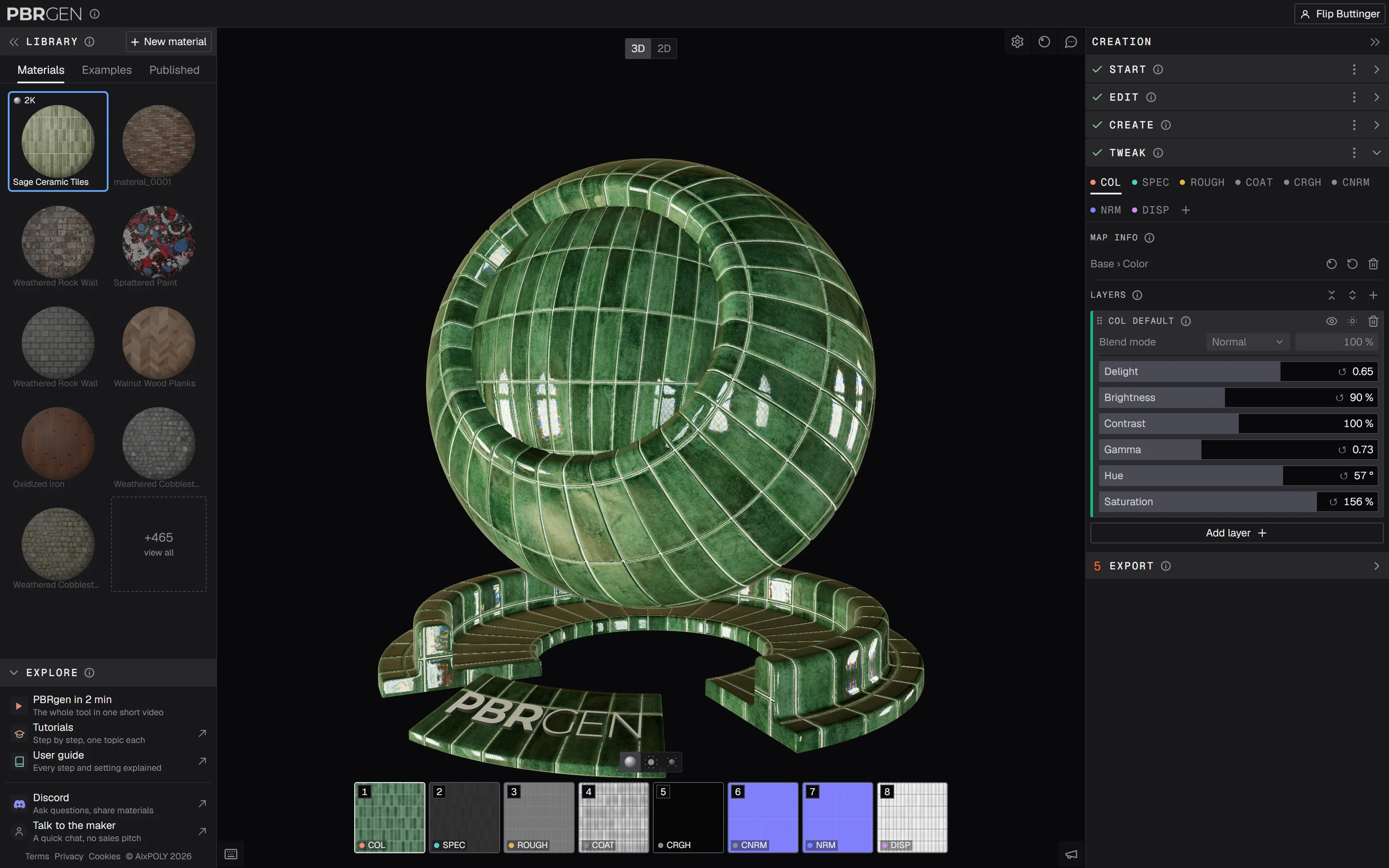
The tabs

- Materials: the materials you made, in your own folders.
- Examples: sample materials made by us. Open one to see how it was made, step by step.
- Published: the materials you shared. Anyone with the link can view and download them.
Materials
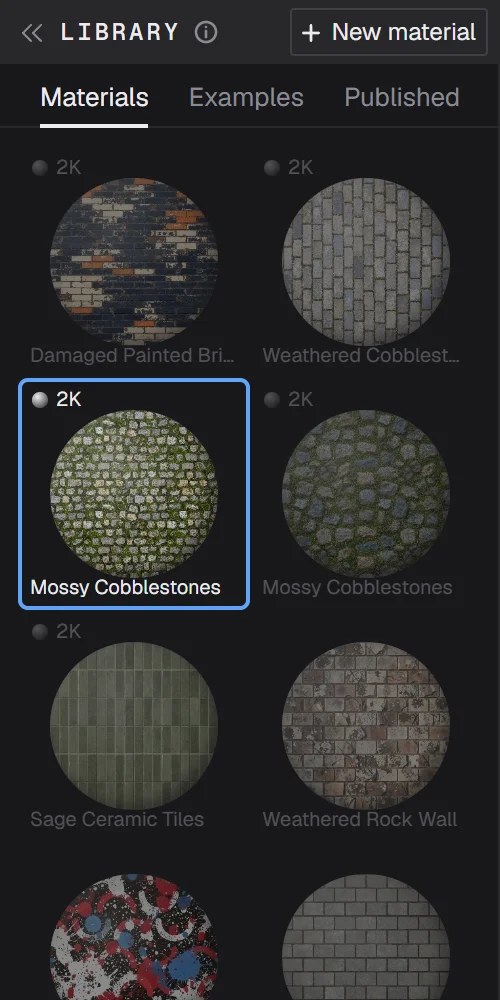
- Click a material to open it. Its steps appear in the column on the right.
- Hover a material to see its name, and the bin to delete it.
- Shift-click or drag a box around several materials to select them, then delete them together. You're asked first.
- While a material is being created, its tile shows the progress, so you can work on another one meanwhile.
New material at the top makes a new one; so does N. Signed in, you choose Generate from scratch or Start from an image (paid plan). See Start.
The full library
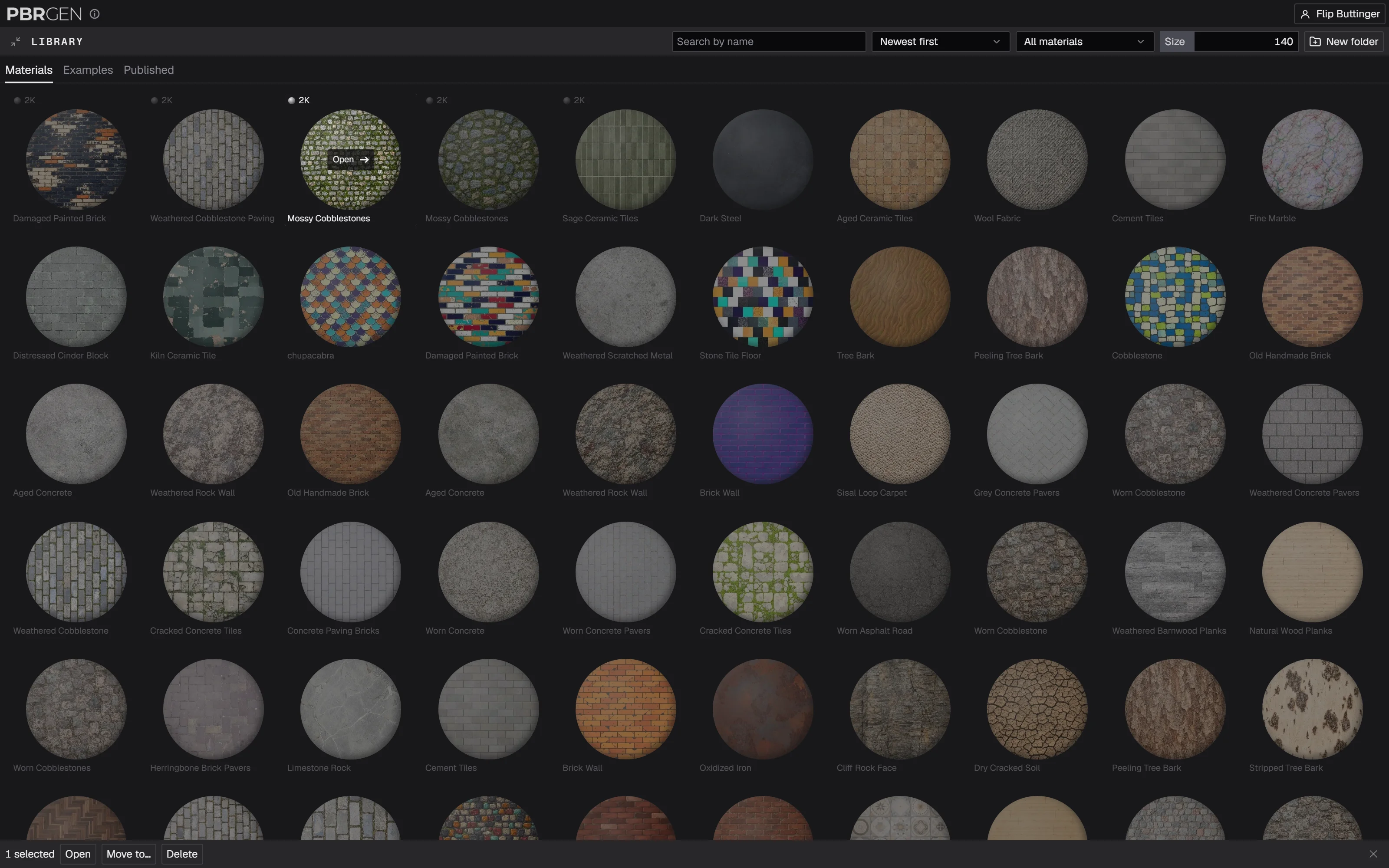
The button at the right of the tabs, or view all after the last tile, opens the whole library in the 3D view's place, with more room and more tools:
- Search by name.
- Sort: newest first, oldest first, or name A to Z.
- Show: all materials, only the ones made into a material, or only the ones not made yet.
- Size: how big the tiles are.
- New folder: make a folder. Folders can hold folders.
Select materials (click, Shift-click, or drag a box) and a bar appears with Open, Move to… and Delete, and a button to clear the selection.
Right-click for more:
- On a material: move it to a folder, make a new folder, rename it or delete it.
- On a folder: rename or delete it. Deleting a folder deletes everything in it; you're asked first.
- On empty space: make a new folder.
You can also drag materials onto a folder to move them. Click a folder to open it.
Back to the tool, or Esc, closes the full library.
Examples
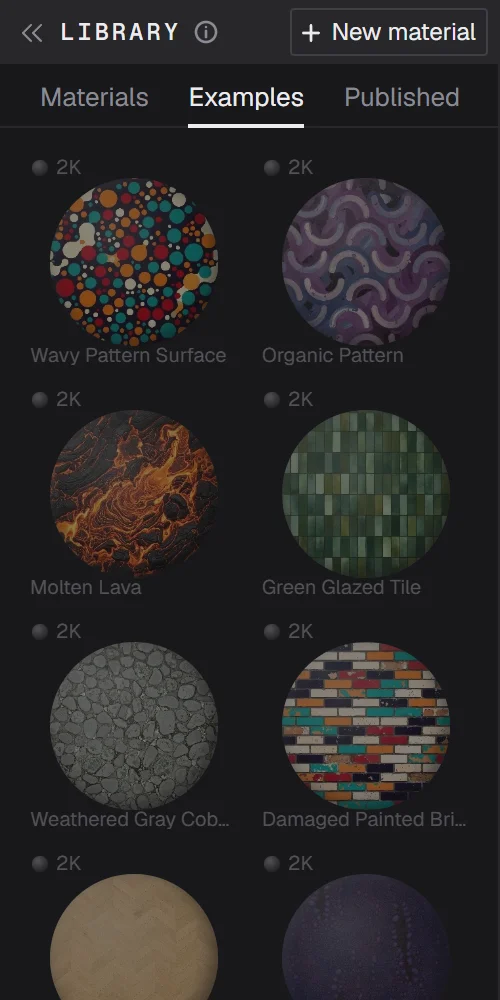
Open an example and every step shows how it was made: the prompt, the settings, the edits, the layers. A notice at the top of the 3D view says it's an example. Copy to my library makes your own copy, to change as you like.
Published materials
Materials you publish in Export are listed here. Right-click one to Copy link or Unpublish. A published material can't be deleted until you unpublish it.
Copying a material from a step
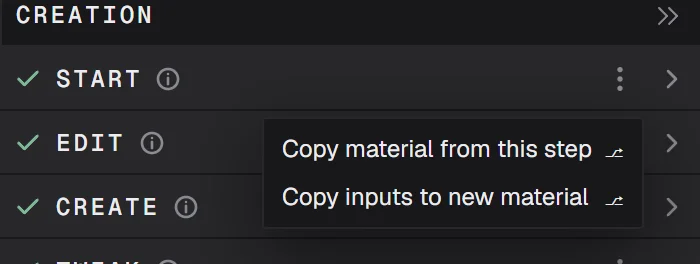
Sometimes you want to try something different without losing what you have, like another edit or another resolution. Every step has a ⋮ menu in its header with Copy material from this step: it makes a new material with everything up to that step, ready to change from there. In step 1 the menu also has Copy inputs to new material, which copies the prompt and settings but not the textures.
When you change a step that's already finished, PBRgen asks how to continue:
- In a new material: this material stays as it is, and the change goes into a copy.
- From here: the change is made in this material, and the steps after it are made again.
Folding the library away
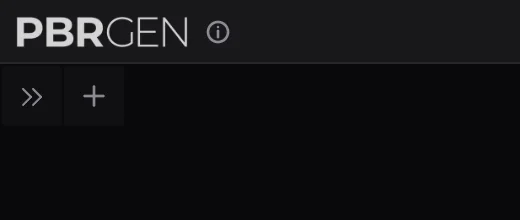
The arrows at the left of the Library header fold the column away, for more room for the 3D view. A small button stays in its place to open it again, with a + for a new material next to it.
Prefer video? Our tutorials are on YouTube.