
5Export
Step 5: download your material for Blender or any other 3D software, pack textures for game engines, or publish it and share a link.
Step 5 gets your material out of PBRgen: download it for your 3D software, or publish it and share a link. Exporting is free.
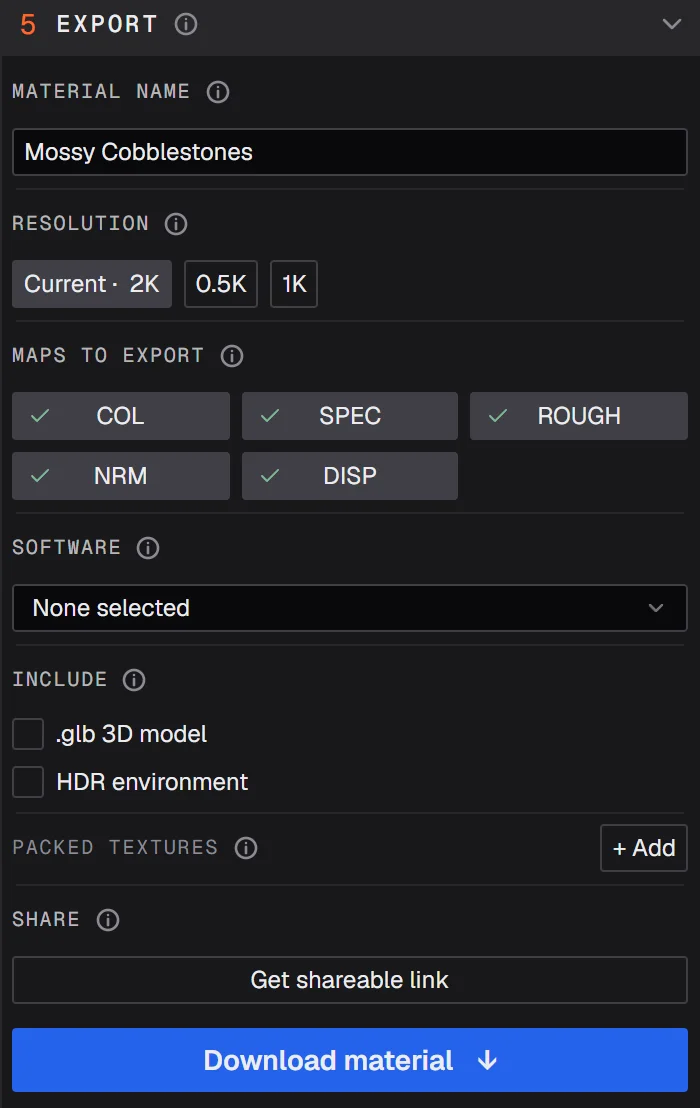
Material name
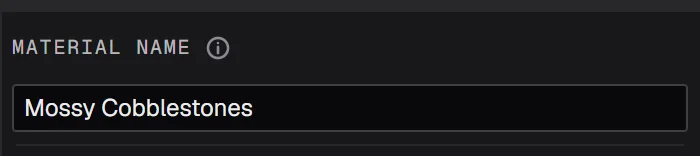
The name your files get: each map is saved as pbrgen_name_COL_2K.png, pbrgen_name_NRM_2K.png and so on, with the map and the size in the name. It's the same name as in your library, so renaming it here renames it there too.
Resolution
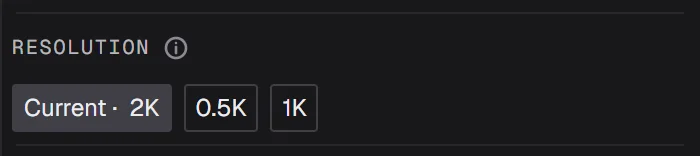
The largest size keeps the maps as they were made. The smaller options scale them down before download, for smaller files or to optimize for a game engine. The download is never scaled up.
Maps to export
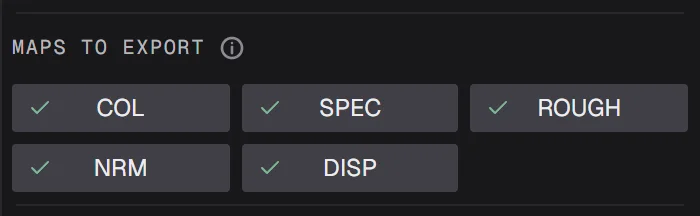
Every map of the material, checked. Click a map to leave it out of the download, and again to put it back.
Software
Every download has:
- the maps as PNG files,
- a MaterialX file (.mtlx) that describes the whole material,
- a USD scene (.usda) with the material on the shader ball.
Most 3D software can open the MaterialX or USD file and set the material up for you. Pick your software to add what it needs on top:
- Blender: adds a .pbrgen file and the PBRgen importer. Install the importer once: drag it into Blender. From then on, drag a .pbrgen file into Blender and the material is built for you.
- My software isn't listed: opens the feedback box with a message ready to send. Tell us which program you use; we add exporters for the ones people ask for.
Packed textures

Some game engines and renderers want several gray maps combined into one image, one per color channel. + Add makes a packed texture:
- Give it a name; it's saved as pbrgen_materialname_yourname_2K.png.
- For each channel, R, G, B and A, pick a map and which of its channels to use. To leave a channel empty, pick the empty option at the top of its list.
You can add as many packed textures as you need; the bin removes one.
Download

Click Download material. You get one zip with everything you selected.
Share
Get shareable link publishes the material to its own page. Anyone with the link can turn it around in 3D and download it, without an account.
Once published:
- Copy copies the link.
- Unpublish takes the page down. The link stops working.
Published materials are listed under Published in your library.
Prefer video? Our tutorials are on YouTube.